2
Setting Up
| 2.1 Installing Mill | 25 |
| 2.2 (Optional) Scala-CLI | 33 |
| 2.3 IDE Support | 34 |
$ ./mill repl
Welcome to Scala
Type in expressions for evaluation. Or try :help.

> 1 + 1
res0: Int = 2

> println("hello world" + "!" * 10)
hello world!!!!!!!!!!
2.1.scala
Snippet 2.1: getting started with the Scala REPL
In this chapter, we will set up a simple Scala programming environment, giving you the ability to write, run, and test your Scala code. We will use this setup throughout the rest of the book. It will be a simple setup, but enough so you can get productive immediately with the Scala language.
Setting up your development environment is a crucial step in learning a new programming language. Make sure you get the setup in this chapter working. If you have issues, come to the online discussions at https://github.com/handsonscala/handsonscala/issues/2 to get help resolving them so you can proceed with the rest of the book in peace without tooling-related distractions.
2.1 Installing Mill
For the purposes of this book, we will be using the Mill build tool (mill-build.org) to build, run, and test our Scala code. Mill is the only command-line tool you need to work with Scala, typically combined with an IDE or editor like IntelliJ (2.3.1) or VSCode (2.3.2).
Mill can be installed locally in any folder by running:
Mac/Linux
> export REPO=https://repo1.maven.org/maven2/com/lihaoyi/mill-dist
> curl -L $REPO/1.1.3/mill-dist-1.1.3-mill.sh -o mill
> chmod +x mill
> ./mill version
1.1.3
Mill handles the downloading and caching of all necessary tools on your behalf: the
JVM runtime, the Scala compiler and standard library, and any necessary third-party libraries.
The ./mill bootstrap script also ensures that once Mill is set up within your codebase it
is available anywhere the codebase happens to be checked out: your laptop, your colleague's
cloud devbox, or the machines running your CI cluster. Overall this saves us all the hassle
of installing all components manually in every environment your code needs to run in.
2.1.1 Installing Java
While most of the examples in this book involve building and running your code within Mill,
a few of them involve packaging your code in Mill but running it later outside. For that you
need to install java on your machine, version 21 to be consistent with Mill's defaults. You
can download the appropriate installer from any one of the following pages:
- https://adoptium.net/en-GB/temurin/releases?version=21
- https://downloads.corretto.aws/#/downloads?version=21&type=jdk
While other versions of Java may work, you should stick with version 21 to ensure compatibility with all the examples in this book, since different versions may cause subtle changes in behavior that would result in confusion and make it more difficult to follow along.
2.1.2 Windows Setup
If you are on Windows, the easiest way to follow along this book is to use the Windows Subsystem for Linux 2 (WSL2) to provide a unix-like environment to run your code in. This can be done by following the documentation on the Microsoft website:
WSL2 allows you to choose which Linux environment to host on your Windows
computer. For this book, we will be using Ubuntu 18.04 LTS.
Completing the setup, you should have a Ubuntu terminal open with a standard
linux filesystem and your Windows filesystem available under the /mnt/c/
folder:
$ cd /mnt/c

$ ls
'Documents and Settings'    PerfLogs        'Program Files (x86)'   Recovery
'Program Files'             ProgramData     Recovery.txt            Users
...
2.3.bash
The files in /mnt/c/ are shared between your Windows environment and your
Linux environment:
-
You can edit your code on Windows, and run it through the terminal on Linux.
-
You can generate files on disk on Linux, and view them in the Windows Explorer
From there, you should be able to run the Mac/Linux curl command above within WSL2
to set up your ./mill script.
Many of the chapters in this book assume you are running your code in WSL2's Ubuntu/Linux environment, while graphical editors like IntelliJ or VSCode will need to be running on your Windows environment, and WSL2 allows you to swap between Linux and Windows seamlessly. While the Scala language can also be developed directly on Windows, using WSL2 will allow you to avoid compatibility issues and other distractions as you work through this book.
If you wish to install the ./mill script directly on your Window environment, you
may use the command below, which should work in a PowerShell terminal in Windows 10/11.
This should work for the most Scala code examples, but the shell
snippets such as ls or find that we make use of may have a different syntax on Windows,
making it more difficult to follow along with the chapters that use them.
Windows
> $REPO = "https://repo1.maven.org/maven2/com/lihaoyi/mill-dist"
> curl.exe -L "$REPO/1.1.3/mill-dist-1.1.3-mill.bat" -o mill.bat
> ./mill version
1.1.3
2.1.3 The Scala REPL
The Scala REPL is an interactive Scala command-line in which you can enter
code expressions and have their result printed. It can be started via ./mill repl
$ ./mill repl
Welcome to Scala
Type in expressions for evaluation. Or try :help.
> 1 + 1
res0: Int = 2

> "i am cow".substring(2, 4)
res1: String = "am"
2.5.scala
Invalid code prints an error:
> "i am cow".substing(2, 3)
-- [E008] Not Found Error: --------------------------------------------------
1 |"i am cow".substing(2, 3)
|^^^^^^^^^^^^^^^^^^^
|value substing is not a member of String -
|did you mean ("i am cow" : String).substring?
2.1.3.1 REPL Tab-Completion
You can use tab-completion after a . to display the available methods on a
particular object, a partial method name to filter that listing, or a complete
method name to display the method signatures:
> "i am cow".<tab>...
> "i am cow".sub<tab>> "i am cow".substring<tab>def substring(x$0: Int, x$1: Int): String
def substring(x$0: Int): String
2.1.3.2 Interrupting REPL Code
If a REPL command is taking too long to run, you can kill it via Ctrl-C:
> while true do { Thread.sleep(1000); println(1 + 1) } // loop forever
2
2
2
^C
Attempting to interrupt...
java.lang.InterruptedException: sleep interrupted
at java.base/java.lang.Thread.sleep0(Native Method)
at java.base/java.lang.Thread.sleep(Thread.java:509)
... 30 elided
>
2.1.4 Scala Scripts
In addition to providing a REPL, Mill can run Scala Script files. A Scala
Script is any file containing Scala code, ending in .scala. Scala Scripts are a
lightweight way of running Scala code that is more convenient, though less
configurable, than using a fully-featured build tool like Mill.
For now, you can create the
following file myScript.scala, using any text editor of your choice
(Vim, Sublime Text,
VSCode, Notepad, etc.). We will explore setting
up a more feature-rich IDE later in IDE Support (2.3).
myScript.scala2.9.scaladefmain()=println(1+1)// 2println("hello"+" "+"world")// hello worldprintln(List("I","am","cow"))// List(I, am, cow)
Note that in scripts, you need to println each expression since scripts do not
echo out their values. After that, you can then run the script via ./mill myScript.scala:
$ ./mill myScript.scala
2
hello world
List(I, am, cow)
2.10.bash
The first time you run the script file, it will take a moment to compile the script to an executable. Subsequent runs will be faster since the script is already compiled.
2.1.4.1 Watching Scripts
If you are working on a single script, you can use the ./mill -w or ./mill --watch
command to watch a script and re-run it when things change:
$ ./mill -w myScript.scala
2
hello world
List(I, am, cow)
Watching for changes... (Enter to re-run, Ctrl+C to exit)
2.11.bash
Now whenever you make changes to the script file, it will automatically get re-compiled and re-run. This is much faster than running it over and over manually, and is convenient when you are actively working on a single script to try and get it right.
You can edit your Scala scripts with whatever editor you feel comfortable with: IntelliJ (2.3.1), VSCode (2.3.2), or any other text editor.
2.1.4.2 Script Main Methods
Scripts that are run directly need to start in a MainArgs
def main() method, which can optionally take parameters that the user passes from the
command line:
myScript.scala2.12.scaladefmain(myArg:String,myOtherArg:Int)=println("hello"+" "+myOtherArg)println(myOtherArg+myOtherArg)
$ ./mill myScript.scala
Missing arguments: --my-arg <str> --my-other-arg <int>
Expected Signature: main
  --my-arg <str>
  --my-other-arg <int>

$ ./mill myScript.scala --my-arg "mooo" --my-other-arg 7
hello mooo
14
2.13.bash
2.1.5 Using Scripts from the REPL
You can open up a REPL with access to the functions in a Scala file by running
the :repl command on the specific script file.
For example, given the following definition:
hello.scala2.14.scaladefhello(n:Int)="hello world"+"!"*n
You can then open a REPL with access to it as follows:
$ ./mill hello.scala:repl
> hello(12)
res0: String = "hello world!!!!!!!!!!!!"
2.15.bash
Things to note:
- If you make changes to the script file, you need to exit the REPL
using
Ctrl-Dand re-open it to make use of the modified script.
You can also combine :repl with --watch/-w:
$ ./mill -w hello.scala:repl
In which case when you exit with Ctrl-D it will automatically restart the REPL
if the script file has changed.
2.1.6 Mill Projects
Apart from supporting a REPL and small scripts, Mill can also be used for larger projects. The easiest way to get started with Mill is to download an example project:
$ export REPO=https://repo1.maven.org/maven2/com/lihaoyi/mill-dist/1.1.3

$ export FILENAME=mill-dist-1.1.3-example-scalalib-basic-6-programmable

$ curl -L "$REPO/$FILENAME.zip" -o "$FILENAME.zip"

$ unzip "$FILENAME.zip" && rm "$FILENAME.zip"

$ mv $FILENAME/* . && rm -r $FILENAME

$ find . -type f
./build.mill
./mill
./foo/src/Foo.scala
./foo/test/src/FooTests.scala
./mill.bat
2.16.bash
You can see that the example project has 8 files (5 that we will focus on now). A build.mill file that
contains the project definition, defining a module foo with a test module
test inside:
build.mill2.17.scalapackagebuildimportmill.*,scalalib.*objectfooextendsScalaModule{defscalaVersion="3.7.1"defmvnDeps=Seq(mvn"com.lihaoyi::scalatags:0.13.1",mvn"com.lihaoyi::mainargs:0.7.8")objecttestextendsScalaTests{defmvnDeps=Seq(mvn"com.lihaoyi::utest:0.9.4")deftestFramework="utest.runner.Framework"}}
The test module definition above comes with a dependency on one third party
library: mvn"com.lihaoyi::utest:0.9.4". We will see other libraries as we
progress through the book and how to use them in our Mill projects.
The Scala code for the foo module lives inside the foo/src/ folder:
foo/src/Foo.scala2.18.scalapackagefooimportscalatagsText..all.*importmainargs.{main,Parser}objectFoo{defgenerateHtml(text:String)={h1(text).toString}defmain(text:String)={println(generateHtml(text))}defmain(args:Array[String]):Unit=Parser(this).runOrExit(args)}
While the Scala code for the foo.test test module lives inside the
foo/test/src/ folder:
foo/test/src/FooTests.scala2.19.scalapackagefooimportutest.*objectFooTestsextendsTestSuite{deftests=Tests{test("simple"){valresult=Foo.generateHtml("hello")assert(result=="<h1>hello</h1>")result}test("escaping"){valresult=Foo.generateHtml("<hello>")assert(result=="<h1><hello></h1>")result}}}
Lastly, the example project contains a mill executable file (mill.bat for Windows).
You can use this file as a launcher to compile and run the project, via ./mill ...:
$ ./mill foo.compile
compiling 3 Scala sources to out/mill-build/compile.dest/classes ...

$ ./mill foo.run --text hello
<h1>hello</h1>
2.20.bash
While above we run both
./mill foo.compile and ./mill foo.run, if you want to run your code you can
always just run ./mill foo.run. Mill will automatically re-compile your code
if necessary before running it.
To use Mill in any other project, or to start a brand-new project using Mill, it
is enough to copy over the mill script file to that project's root directory,
or to download it again using the curl command we used earlier.
2.1.7 Running Unit Tests
To get started with testing in Mill, you can run ./mill foo.test:
$ ./mill foo.test
120] foo.test.compile compiling 1 Scala source to out/foo/test/compile.dest/classes ...
120] done compiling
127] foo.test.testForked Running Test Class foo.FooTests
127] -------------------------------- Running Tests --------------------------------
127] + foo.FooTests.simple 20ms <h1>hello</h1>
127] + foo.FooTests.escaping 0ms <h1><hello></h1>
127] Tests: 2, Passed: 2, Failed: 0
127/127] ============================== foo.test ============================== 1s
2.21.bashThis shows the successful result of the one test that comes built in to the example repository.
2.1.8 Creating a Stand-Alone Executable
So far, we have only been running code within the Mill build tool. But what if
we want to prepare our code to run without Mill, e.g. to deploy it to production
systems? To do so, you can run ./mill foo.assembly to
to create an out.jar file that can be distributed, deployed and run without
the Mill build tool in place. By default, Mill creates the output for the
foo.assembly task in out/foo/assembly.dest, but you can use ./mill show to
print out the full path:
$ ./mill show foo.assembly
".../out/foo/assembly.dest/out.jar"
2.22.scala
You can run the executable assembly to verify that it does what you expect. Note
that this requires to run the foo.assembly task first.
$ out/foo/assembly.dest/out.jar --text hello
<h1>hello</h1>
2.23.bash
In general, running Scala code in a Mill project requires a bit more setup than running it interactively in the Scala REPL or Scala Scripts, but the ability to easily test and package your code is crucial for any production software.
2.2 (Optional) Scala-CLI
An alternative to using ./mill for the Scala REPL and scripts is Scala-CLI, which
can be installed from the following URL:
Scala-CLI can be used to run the REPL via the scala command:
$ scala
Welcome to Scala 3.8.1

scala> 1 + 1
val res0: Int = 2
2.24.scala
Or run scripts from the command line:
$ cat foo.scala
def main(args: Array[String]): Unit = {
    println("Hello World")
}

$ scala foo.scala
Hello World
2.25.scala
Note that Scala-CLI's scripts and REPL have a slightly different set of default libraries than
Mill's scripts and REPL, so you may need to include libraries manually via the --dependency
flag in the REPL or //> using dep clauses in scripts.
2.3 IDE Support
2.3.1 Installing IntelliJ for Scala
To use Mill with IntelliJ, first ensure you have the free IntelliJ Scala Plugin installed. This is necessary as Mill build files are written in Scala, even if you are using it to build a Java or Kotlin project.
Once you have the plugin installed, you can use IntelliJ to open any project
containing a Mill build.mill file, and IntelliJ will automatically load the
Mill build. This will provide support both for your application code,
as well as the code in the build.mill. You can try this on the example
Mill project you downloaded earlier in the section Mill Projects (2.1.6):
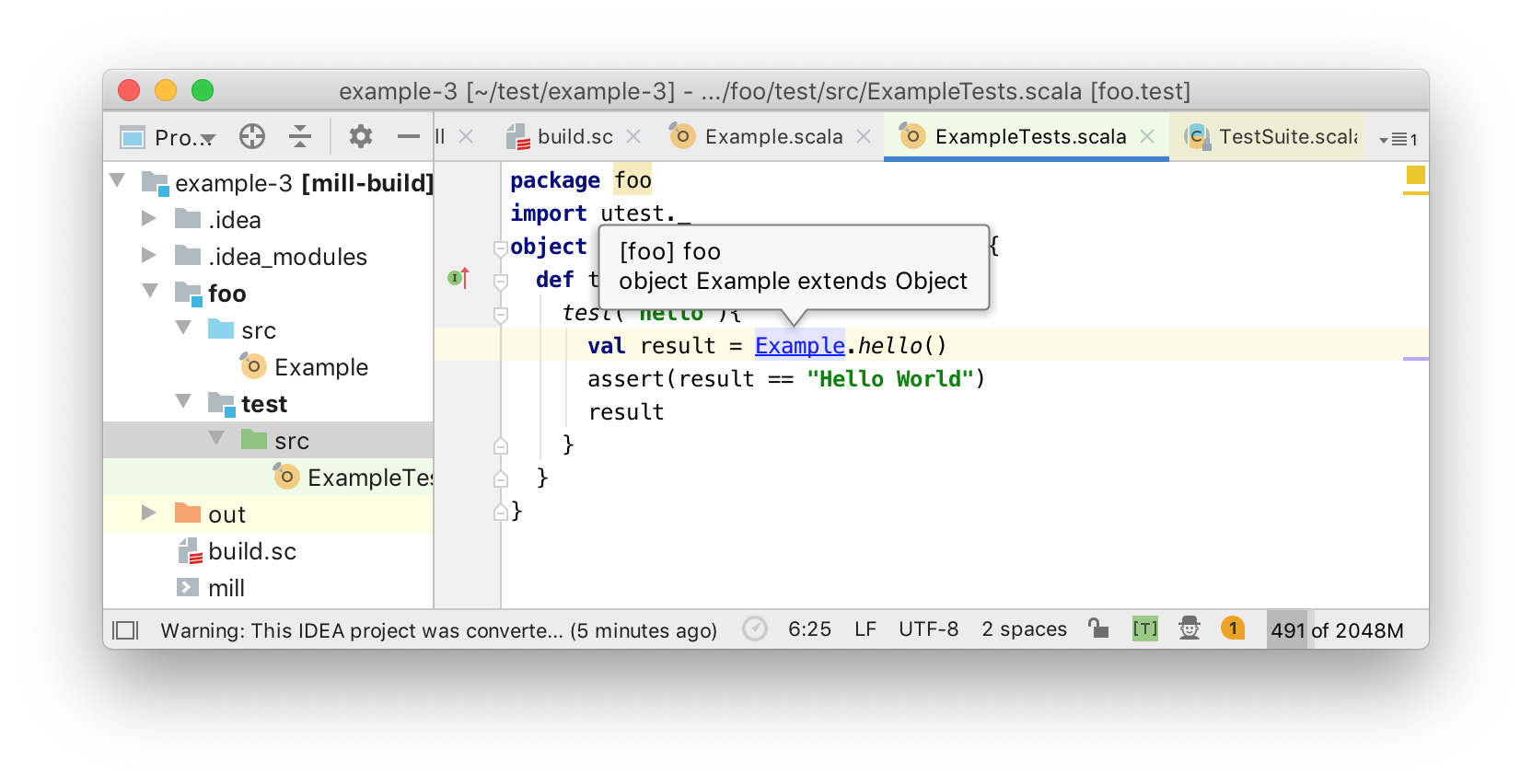
If you make changes to your Mill build.mill, you can ask Intellij to load
those updates by opening the "BSP" tab and clicking the "Refresh" button
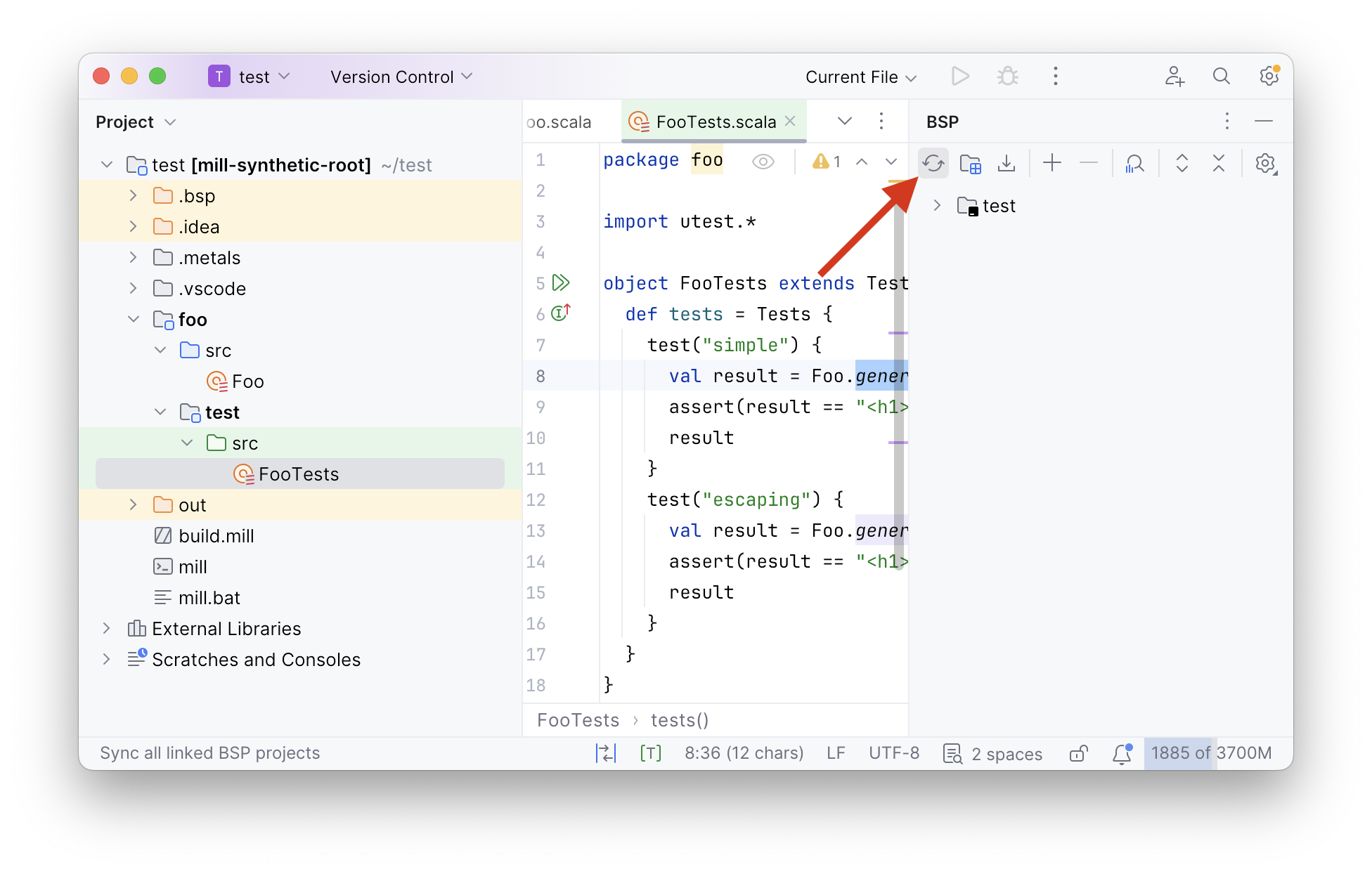
In general, you may need to refresh IntelliJ any time you make changes to the build
configuration of the project: adding or removing dependencies to build.mill,
creating new modules, creating new Scala Scripts (2.1.4) or changing
the dependencies of those scripts.
2.3.2 Visual Studio Code Support
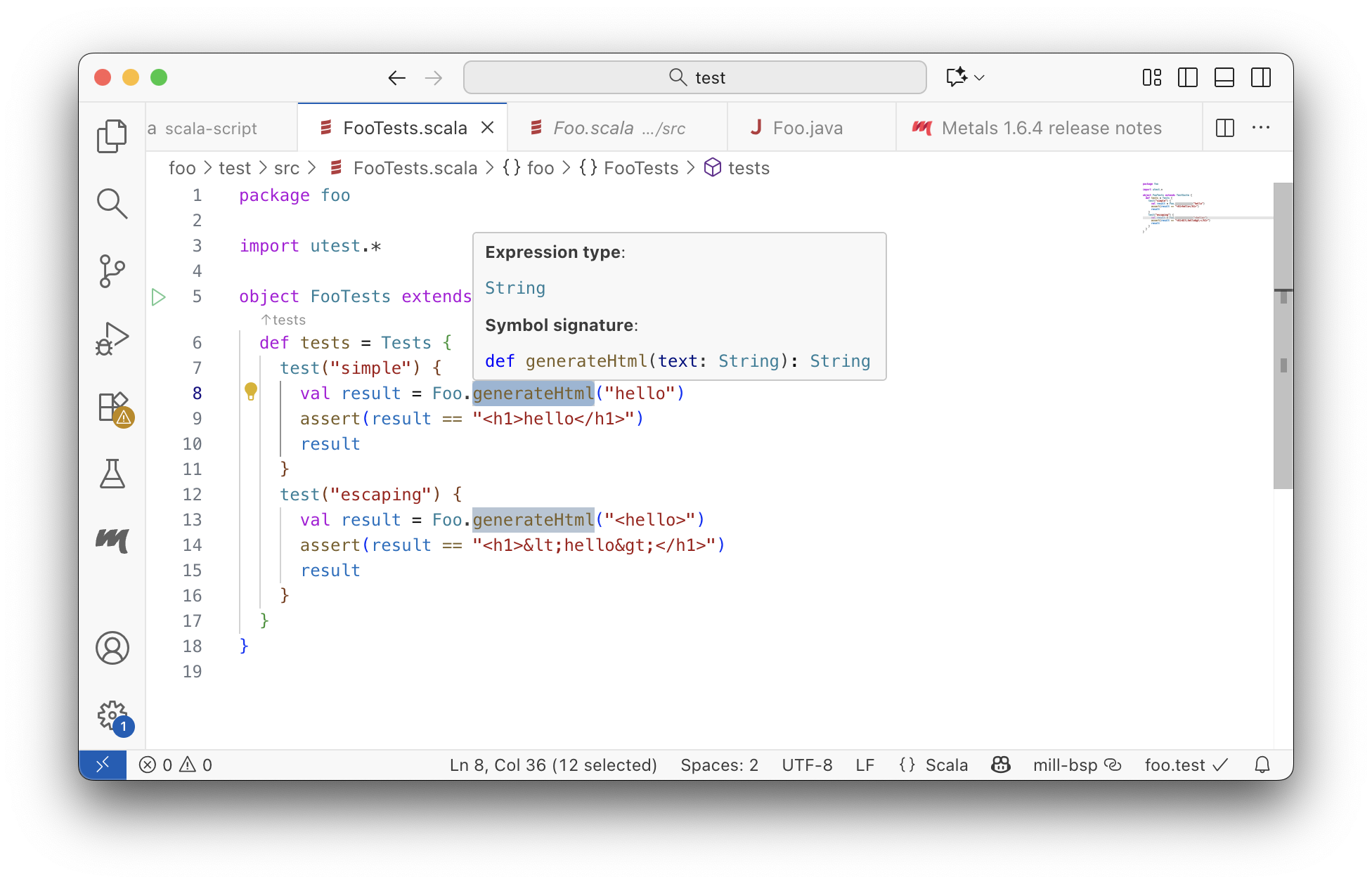
To use Mill with VSCode, first ensure you have the free Metals VSCode Scala language server installed. This is necessary as Mill build files are written in Scala, even if you are using it to build a Java project.
Once you have the language server installed, you can ask VSCode to open any folder
containing a Mill build.mill file, and VSCode will ask you to import your
Mill build. This will provide support both for your application code,
as well as the code in the build.mill:
If you make changes to your Mill build.mill, you can ask VSCode to load
those updates by opening the "Metals" tab and clicking the "Import build" button.
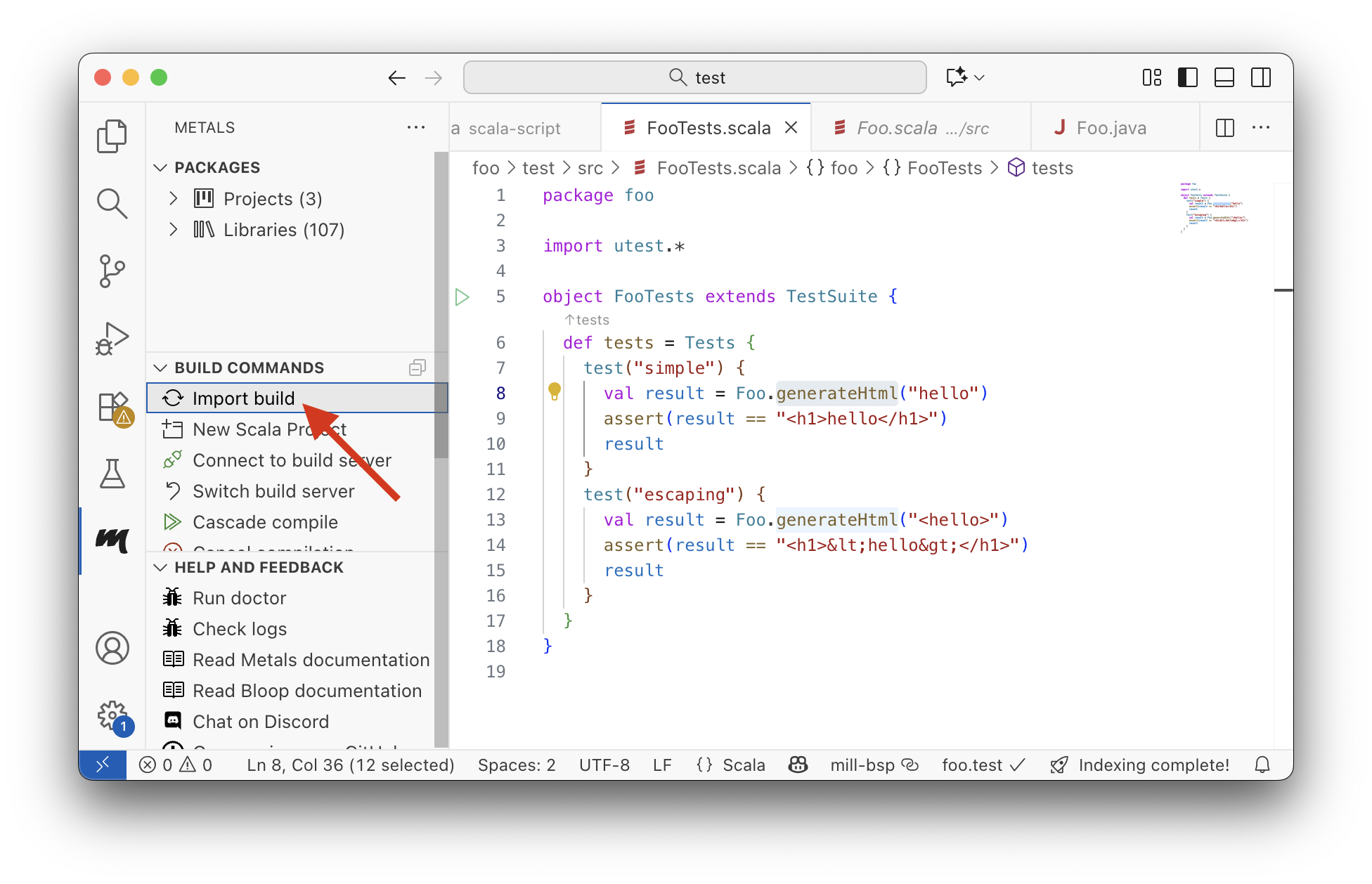
Like IntelliJ, you need to re-import the build into VSCode any time you make changes to build configuration: changing dependencies, new modules, creating new scripts
Metals also supports other editors such as Vim, Sublime Text, Atom, and others. For more details, refer to their documentation for how to install the relevant editor plugin:
2.4 Conclusion
By now, you should have three main things set up:
- Your
./millor./mill.batbootstrap script, to run./mill repl, or./mill myScript.scala - A Mill example project, which you can run via
./mill foo.runor test via./mill foo.test - Either IntelliJ or VSCode support for your Mill example projects
We will be using Mill as the primary build tool throughout this book. Before you move on to the following chapters, take some time to experiment with these tools: write some code in the Scala REPL, create some more scripts, add code and tests to the Mill example projects and run them. These are the main tools that we will use throughout this book.